
How to claim your business in ChatGPT: what we saw claiming a small online shop
OpenAI opened Business Hub on 10 November 2026. The same evening, we claimed a small online shop that sells fashion accessories, and recorded every screen. This is the full flow, what it asked for, and where it stopped.
Claiming takes nine steps. Service businesses cannot claim yet.
An online store can create its business in one sitting if it can edit its DNS or sign in to Shopify. The flow ends with a draft profile and a government-ID check.
Two findings came before the first form. ChatGPT’s business directory linked the shop’s domain to an unrelated company. And the option for businesses that provide a service was marked “Coming soon”.
What Businesses in ChatGPT is.
According to OpenAI’s announcement, businesses use Business Hub to claim their business, keep its information and product feeds current, and see aggregated insights: mentions, website clicks, and discovery topics, meaning common themes in conversations where their website is cited.
OpenAI says any eligible business located where ChatGPT is available can claim. Business Agents, which answer customer questions in a separate, labelled conversation, start with eligible ecommerce and online service businesses in the United States. Shopify merchants can also connect their store, and Enterprise customers and advertisers can claim through their OpenAI representative.
Before you start.
- 01A ChatGPT account
- The account that will own the business profile.
- 02DNS or Shopify access
- Access to your domain’s DNS records, or the Shopify admin for the store.
- 03Your shop policies
- Delivery costs, any free-delivery minimum, return fees, and the return window.
- 04A government-issued ID
- Required before you can edit business information or publish a Business Agent.
Step by step.
- 01
Open Business Hub and search for your business
Sign in to ChatGPT and open chatgpt.com/business-hub. Searching accepts OpenAI’s Businesses in ChatGPT Terms. Results list businesses ChatGPT already knows, plus a Create option.
Read the matches before you click. Our search for the shop’s domain returned an unrelated company with a different name and address. A search for the shop’s name returned nothing, so we created a new business. Claim an existing entry only if it is yours.
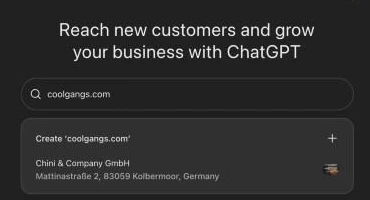
The only match for the shop’s domain was an unrelated company. - 02
Choose how customers reach you
Business Hub offers three types: a physical location, an online store, or a service. Service was marked “Coming soon” and could not be selected. The shop sells from its own website, so we chose Through an online store.
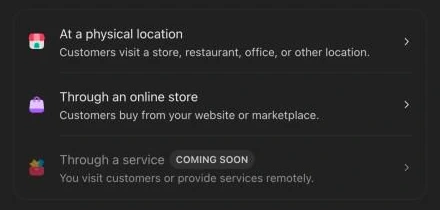
Service businesses cannot be created yet. - 03
Add your website and choose how to prove ownership
Enter the website address. Business Hub then offers two ownership checks: sign in to Shopify, or add a DNS TXT record for the domain. We used the DNS record, which works for any website whose DNS you can edit.
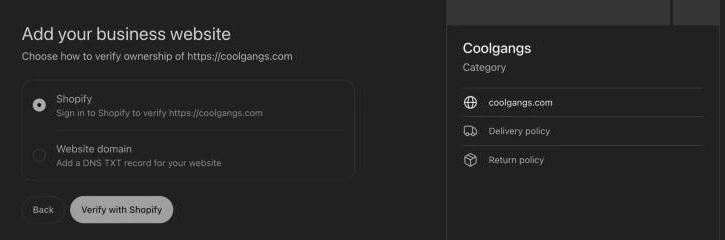
Two ways to prove you control the website. - 04
Add the TXT record before it expires
Business Hub shows a record named
openai-business-profileon your domain, with a value that startsopenai-business-profile=. The record expires about half an hour after it is generated, so have DNS access ready before you start.In most DNS editors, enter only
openai-business-profileas the name; the editor adds the domain. Once public resolvers return the value, for example withdig +short TXT openai-business-profile.example.com, click Verify domain.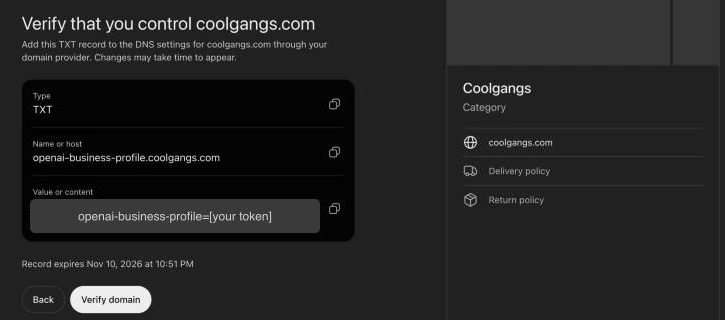
The record name, a redacted value, and its expiry time. - 05
Pick a category and describe the business
Choose a category from a searchable list; we used Fashion accessories store. The description is optional. Business Hub says ChatGPT can share it “in conversations when helpful or relevant”, so keep it factual.
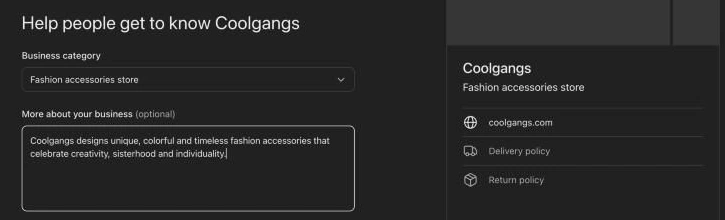
The profile preview on the right updates as you go. - 06
Decide on contact details
A phone number and email are optional, but each one triggers a verification code: SMS or an automated call for the phone, a code for the email.
- 07
Set your delivery policy
Choose no delivery, paid delivery, or free delivery. Free delivery can apply to all orders or above a minimum amount in a chosen currency. Match what your shop actually charges; the profile shows it.
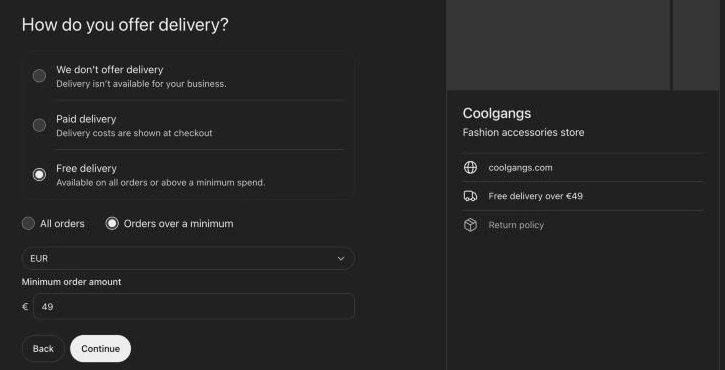
Our shop’s setting: free delivery over €49. - 08
Set your return policy and submit
Choose no returns, returns with fees, or free returns, then a return window: 14, 30, 45, or 90 days, no time limit, or a custom period. Submit creates the business.
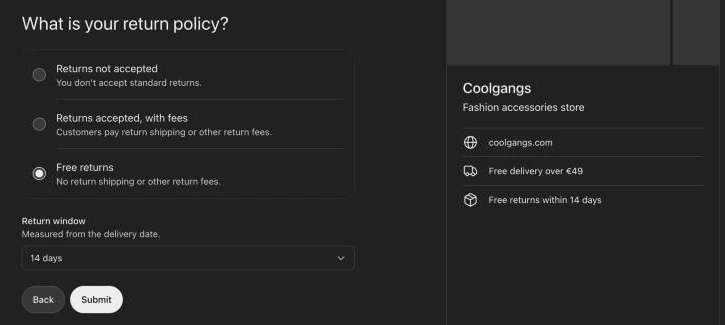
The last form step before Submit. - 09
Finish identity verification
The business is saved as a Draft. Its overview then asks you to verify your identity with a government-issued ID before you can edit business information or publish a Business Agent. The confirmation screen also offers $500 in ChatGPT Ads credit and a ChatGPT Business plan. After you submit ID, the check goes to review, and the profile stays a Draft with the verification banner until it finishes.
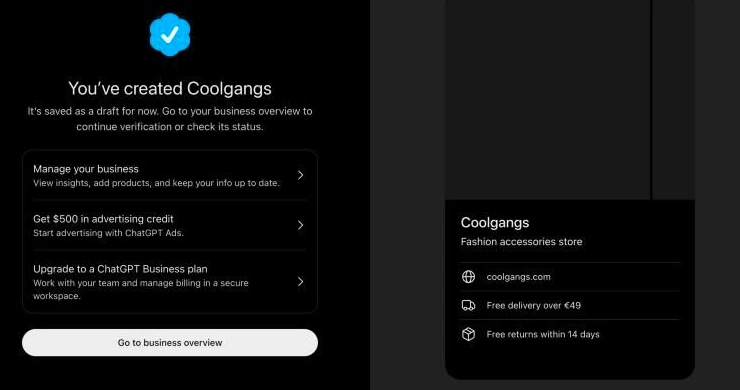
Created, but still a draft.
What Business Hub shows after you submit.
The business area has three pages: Overview, Agent builder, and Products, where a catalog can be uploaded from a file. Overview has brand insights and agent insights over 7 or 28 days: mentions, website clicks, and the top five discovery topics.
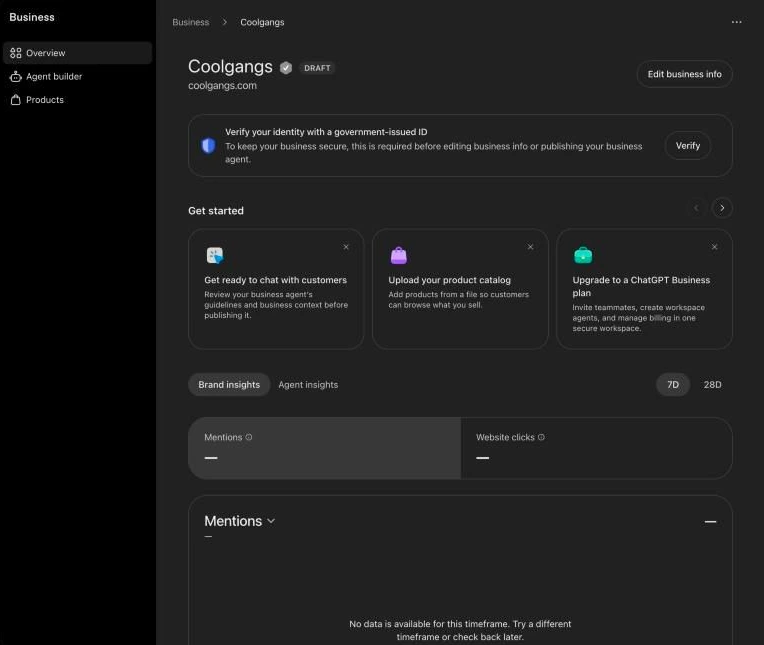
OpenAI says insights appear once there are enough conversations or interactions to meet its thresholds, and that businesses never see users’ conversations or Business Agent chats.
Check how ChatGPT already sees your business.
The search box is useful even if you never submit. It shows which business ChatGPT’s directory connects to your name and domain.
- The shop’s domain matched an unrelated company with a different name and address.
- The shop’s name returned no match.
If the match is wrong, create your own business and verify the domain.
What this means for a business.
Claiming is quick and free for an online store, and it gives ChatGPT verified facts about your delivery, returns, and products. It is worth doing now, before someone else’s entry is linked to your domain.
- Search your name and domain first. Note any wrong match before you create a new business.
- Prepare DNS access and ID. The DNS record expires quickly, and the profile stays a draft without ID.
- Copy your published policies exactly. Delivery and return answers appear on the profile.
- Treat the insights as a ChatGPT-only signal. They are aggregated, limited to one assistant, and hidden below OpenAI’s thresholds.
Business Hub counts mentions. It does not show the answers themselves, the competitors recommended instead of you, or what other assistants say.
See the answers behind the count.
doping.ai asks buyer Probes across six assistants and keeps each original answer with its Citations and the competitors it named. Use it alongside Business Hub to see why ChatGPT mentions you, or recommends someone else.